For tutors
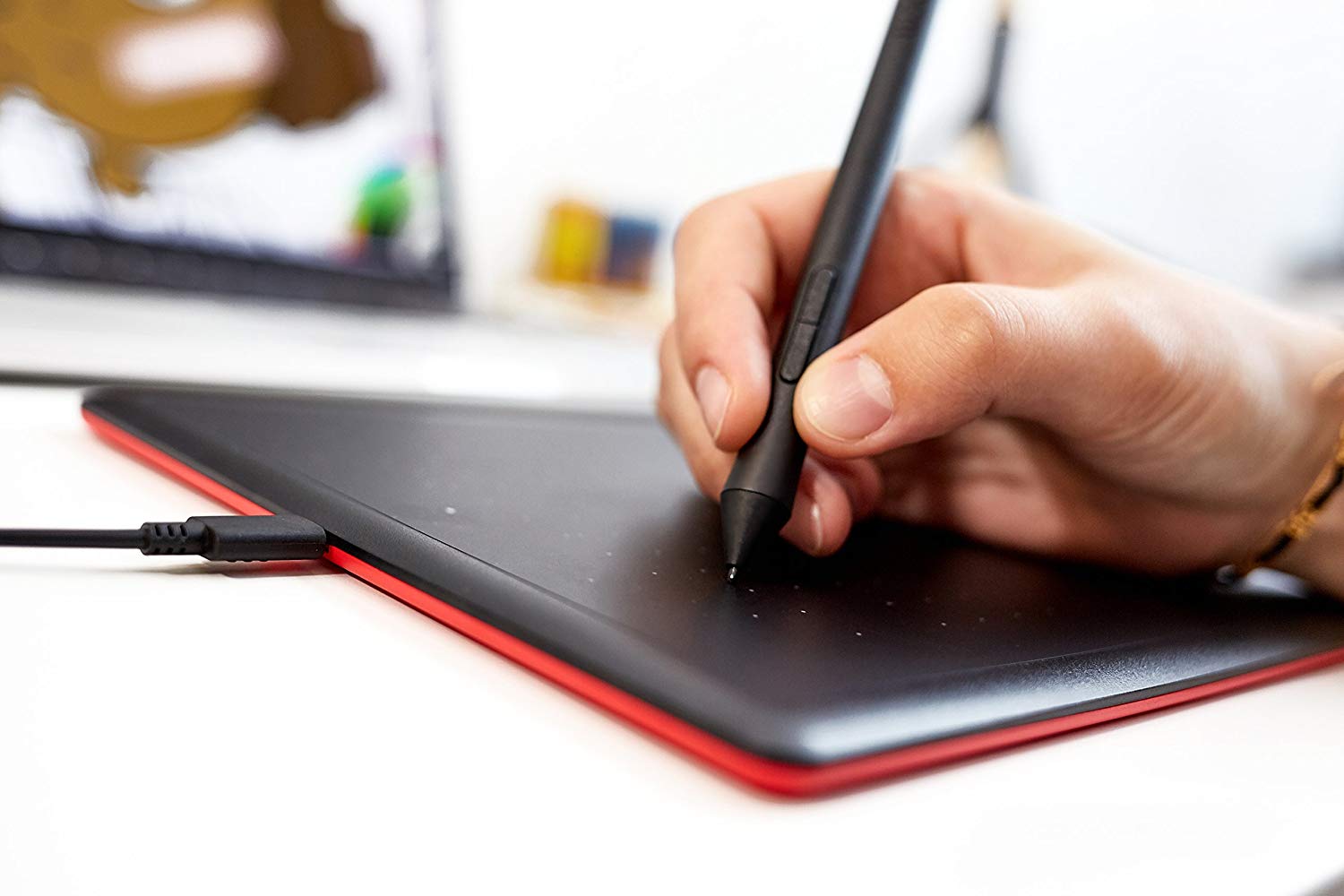
A graphics tablet can make online tutoring easier and more effective. Simply use the digital pen to write naturally on the tablet and it will appear on the Tutor Room whiteboard. Spend less time preparing lesson materials and respond instantly to students’ impromptu questions. Easily draw diagrams, formulas, equations and graphs on the whiteboard or annotate your uploaded files. Graphics tablets are recommended for use on the Tutor Room whiteboard with the freehand Draw tool, especially when teaching maths and sciences.
For students
Students don't need a graphics tablet. They can interact with the whiteboard using their mouse, touchpad or fingers (on touch screen). They can also work on paper and simply hold it up to their camera to snapshot it onto the whiteboard. They can also type using the text tool, Document tools, or Chat tool.
Tablet setup
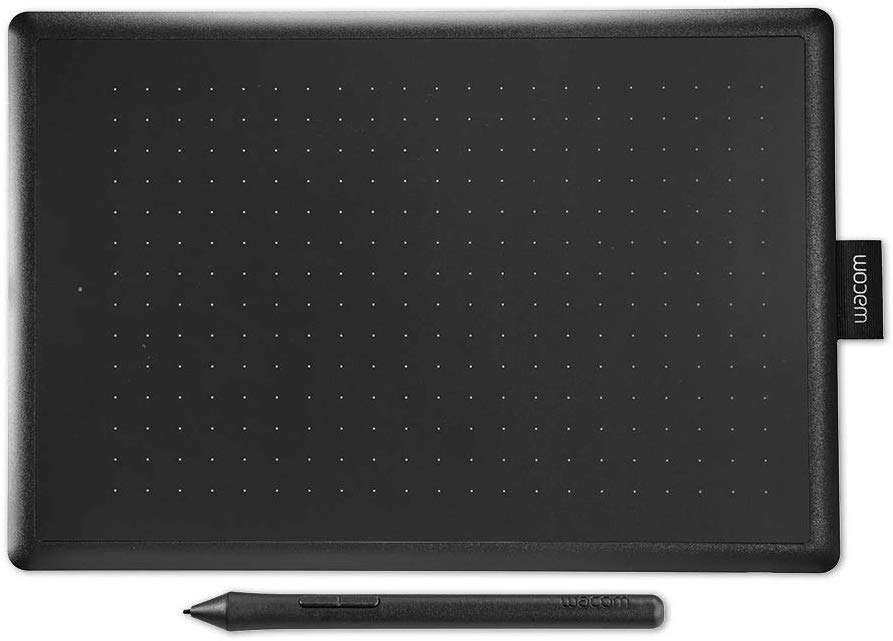
There are a wide range of tablets which are successfully used by many tutors for their online lessons. For example, the Wacom One and Wacom Intuos tablets are well suited to online tutoring and come in 2 sizes, small and medium. If you will be spending a lot of time tutoring online then the medium size provide a large and comfortable drawing area, otherwise the small size is a good choice for less frequent use.
Most tablets will work as soon as you connect them to your computer, but we recommend installing the driver software because it allows you to change some settings to make your tablet more suited to online tutoring. The software and settings options will vary depending upon the tablet you choose.
Example setup for Wacom tablets:
- Plug in Wacom graphics tablet via USB.
- Download then install the Wacom driver software.
- Open Wacom Desktop Centre and access Pen Settings.
- Change the Mapping mode from Pen to Mouse.
- Turn off Acceleration.
- Change the Speed to the 2nd slowest setting.
- If applicable, disable touch input (to avoid inputs from resting your hand on the tablet).
Testing
Once you have setup your graphics tablet, enter your Tutor Room room, select the Draw tool and try writing (you can rest your hand anywhere on the surface of the graphics tablet). Hover the pen above the surface to move the curser over the whiteboard, then touch the pen onto the surface to write. You can also still use your mouse or trackpad to move the curser.
It will take a little bit of practice to get used to looking at the screen while writing on the graphics tablet, but your writing quality will improve very quickly with a little practice.